Getting started
MFSAppsControl is built on a single idea:
Manage the applications to start and/or stop with your simulator without having to think about it.
The main screen
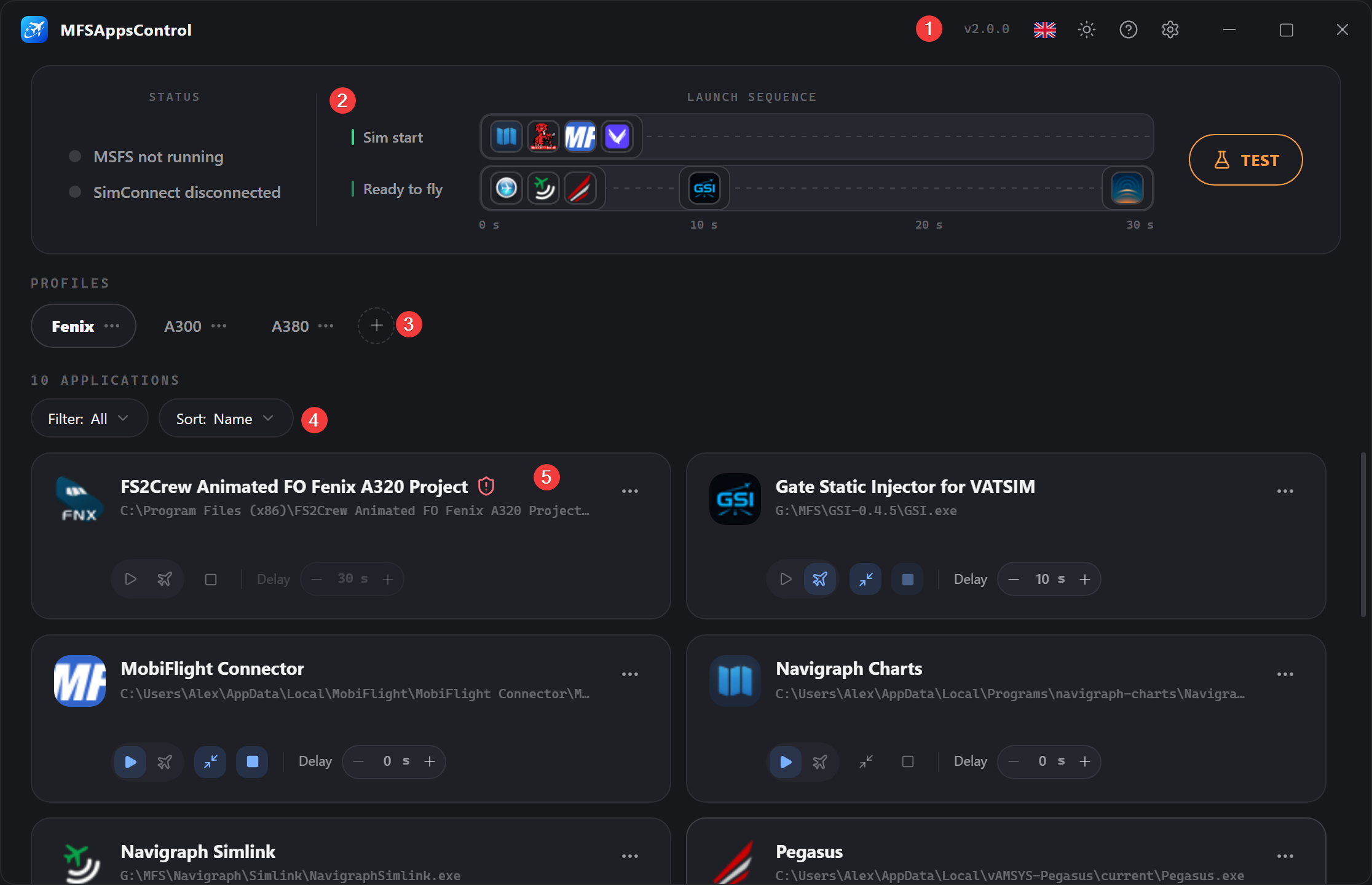
1. The title bar
On the left, the logo with the application name.
On the right, from left to right:
- the version (vX.Y.Z),
- the language (
 ),
), - the theme (),
- the help (),
- the options (),
- and the window buttons (, , ).
When a new version is available, a badge appears next to the version. Clicking it downloads and installs the update.
2. The status & sequence banner
This is the visual display of: - the simulator state and the SimConnect connection, - the application launch sequence, - the sequence test button.

On the left, the statuses — MSFS and SimConnect.
- MSFS status
| Dot | Label | Description |
|---|---|---|
| gray | MSFS not running | The simulator is not running/detected. |
| blue | Launching addons… | The simulator process has been detected. |
| green | FlightSimulator2024.exe · PID 1234 |
The process information has been retrieved. |
- SimConnect status
| Dot | Label | Description |
|---|---|---|
| gray | SimConnect disconnected | Waiting for the simulator to start. |
| green | SimConnect connected | Connection established, system ready. |
| red | SimConnect unavailable | SimConnect is not responding (see the FAQ). |
In the center, the launch sequence
The timeline of your applications, shown as their icons placed on their start delays (only visible if at least one application is configured). → The timeline in detail
On the right, the Test/Stop button
Simulates MSFS starting and stopping so you can test your sequences without launching MSFS.
During a flight or a test, it becomes Stop. → Testing the sequence
3. Profiles
Shows all your available profiles, with the active one highlighted.

A button to create a new profile.
Profiles can be reordered by dragging the tabs.
The menu lets you rename/duplicate/delete them. → Profiles
4. Filters
Shows the number of applications, and lets you filter and sort the applications in the list.
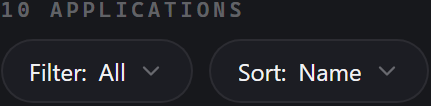
- Filter: All / MSFS start / MSFS stop / Ready to fly
- Sort: Name / Delay
These settings only affect the display.
5. Applications
Shown as a card for each configured application.

A card shows the application's information and its settings. → Anatomy of a card
Your first setup
1. The default profile
On first launch, an empty default profile is waiting for you.
Use it as is, rename it, and create others to suit your needs. → Profiles
2. Add an application
Click the Add an application card.
Choose the application → Add an application:
- From the list of installed applications
- Or by the path to its
.exethrough Browse
3. Set its control options
This is the most important setting. In the add window, the Trigger row offers:
- Sim start to launch it with the simulator (MobiFlight, Navigraph…).
- Ready to fly to launch it once you are in the aircraft (REX Atmos, vPilot…).
Neither is mandatory; the Auto stop button closes the application with the simulator. (Automatically enabled if the application is launched in "Ready to fly" mode.)
4. Set the delay
The delay postpones the start, counting from the chosen trigger. → The delay
5. Test
Click Test: the sequence plays out as if the simulator were starting.
A "Ready to fly in 10s…" countdown simulates the SimConnect connection after 10 s.
Click Stop to end the test and close the applications configured with the option.
What happens during a flight
| Moment | What MFSAppsControl does |
|---|---|
| You launch MSFS | The MSFS status turns blue. |
| The simulator loads | The MSFS status turns green, the SimConnect status turns green as soon as it is available, and the sim-start applications launch according to their delay. |
| You reach a flight's Ready to fly screen | The Ready to fly sequence starts in turn, with its own delays. |
| You switch to another flight | The applications do not restart; they stay running. |
| You quit MSFS | Every application set to Auto stop (including those tied to "Ready to fly" mode) is closed cleanly. |
If MSFS is already running before MFSAppsControl
The sequence does not fire. It will arm itself the next time MSFS starts.
This case is too complex to guarantee a correct, trouble-free launch.
Applications that are already running are still detected, and are closed cleanly when the simulator quits if the option is enabled.
Tip: you can always launch an application by hand from the menu on its card, or outside the app.
Always ready
Turn on Launch at Windows startup and Start minimized to the system tray in the Options.
You can then forget about it, or simply open it to switch profiles before your flight.
