Profiles
A profile groups a set of applications together with their settings.
Create as many as you have use cases (online IFR flying, VFR, A320, A380…) and switch from one to another with a single click.
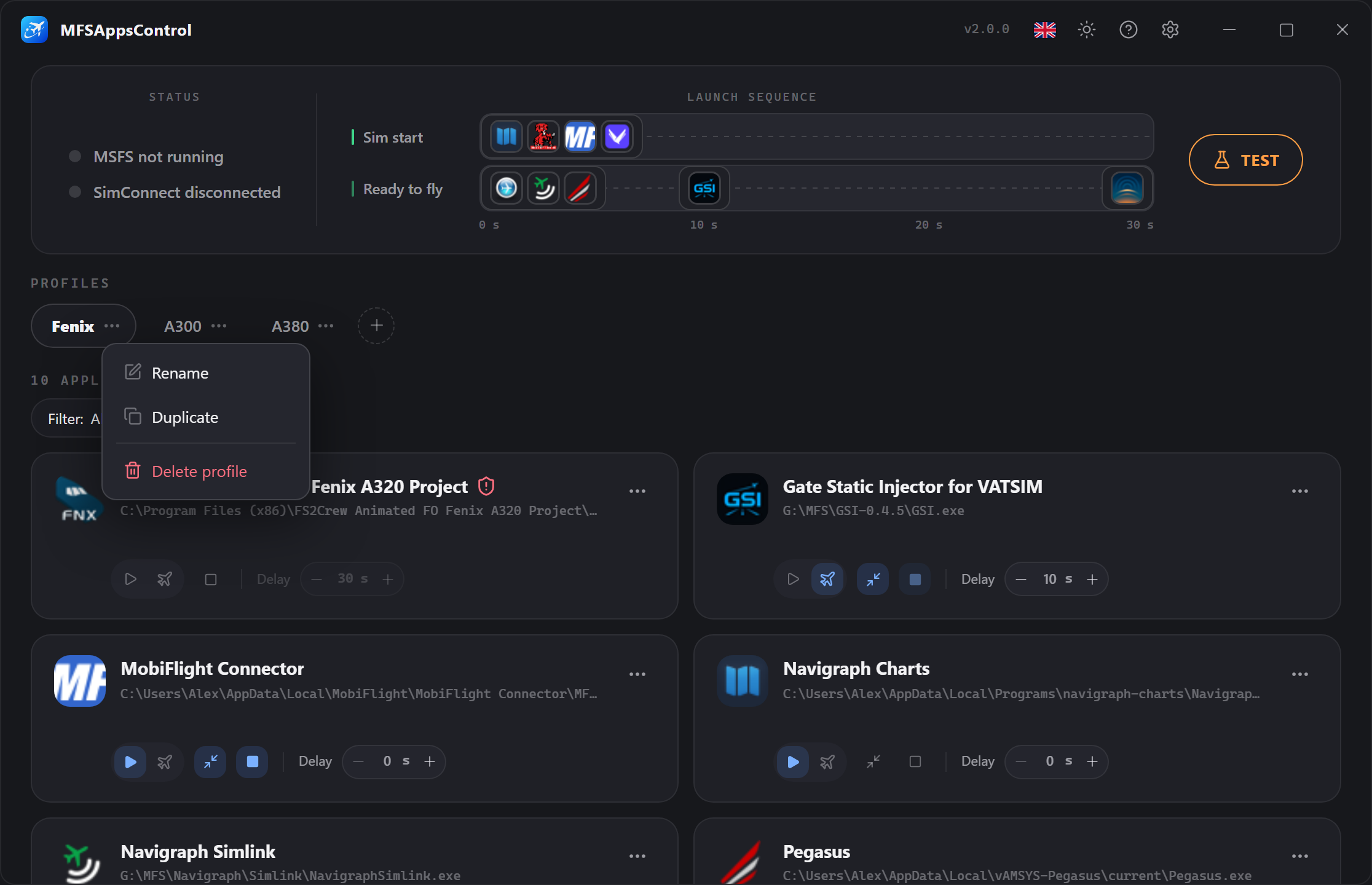
The active profile is the one that drives the sequence
The profile shown is the one MFSAppsControl runs for the sequence.
The profile in use while the simulator is running is marked with a .
Creating a profile
Click the button to the right of the tabs.
A new empty profile is created and asks you to name it.
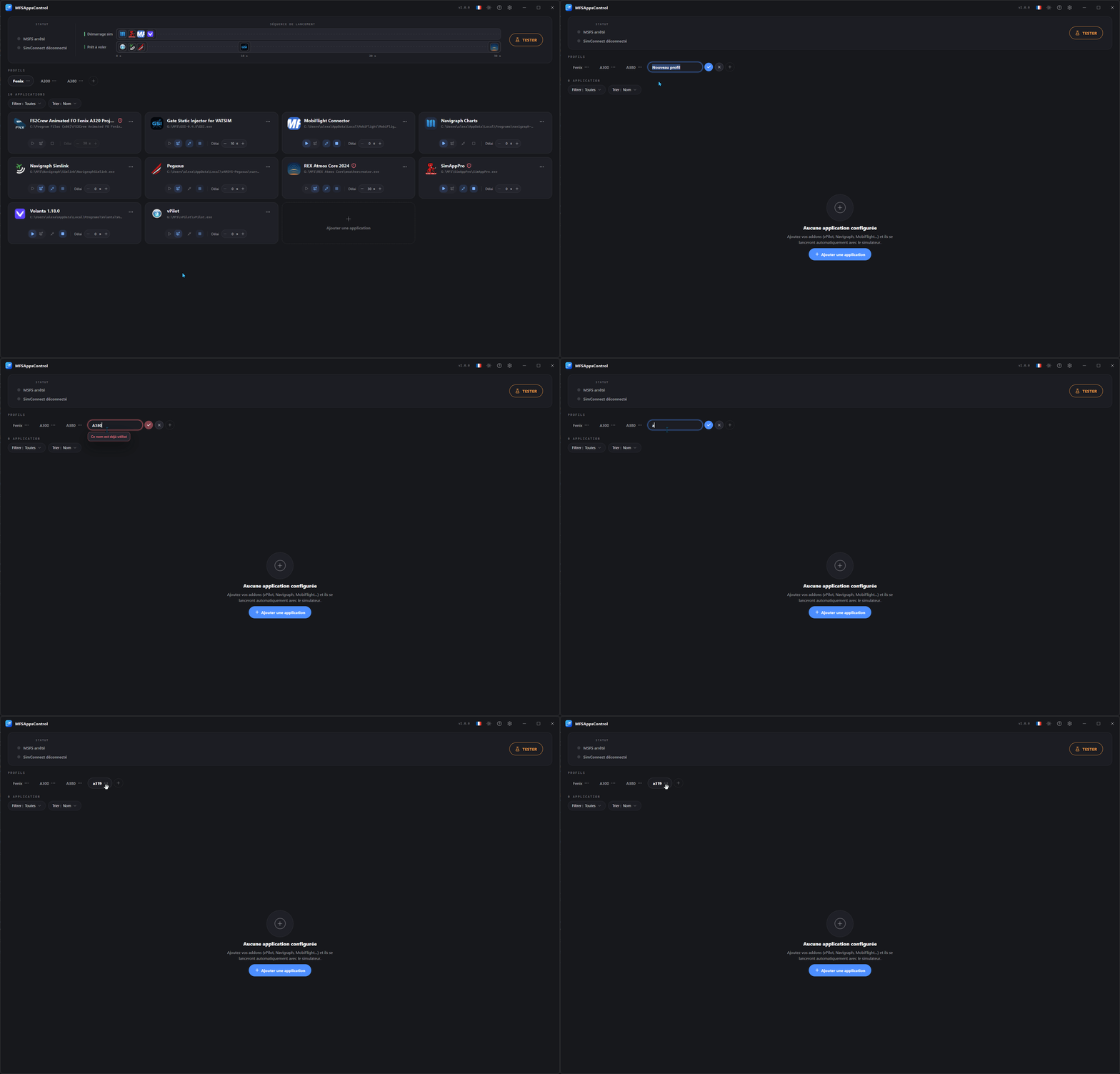
Unique name and canceling
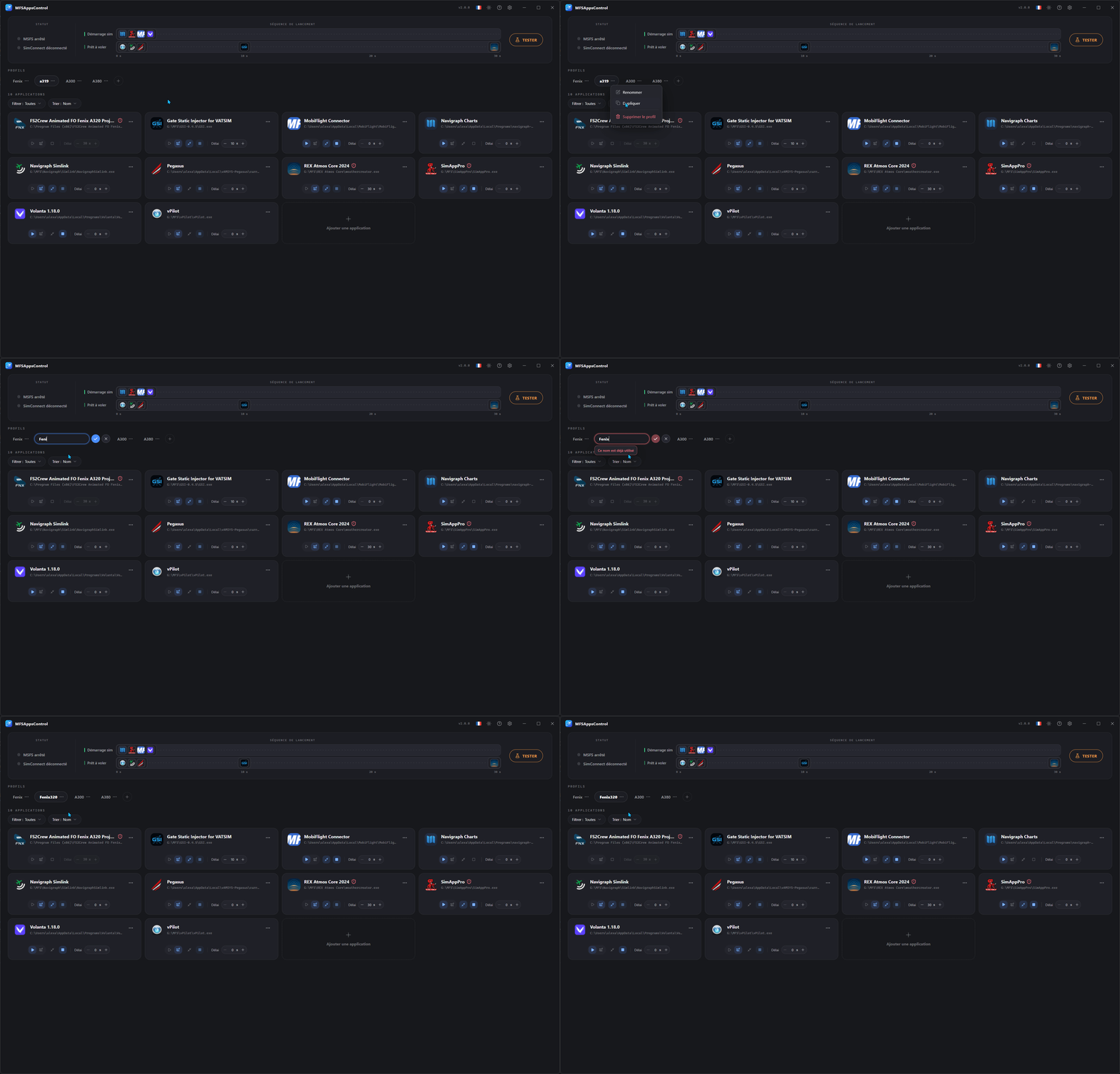
Two profiles cannot have the same name.
As long as the name you type is already in use, the field turns red and confirmation is blocked.
To cancel, click the cross or press Esc.
Context menu
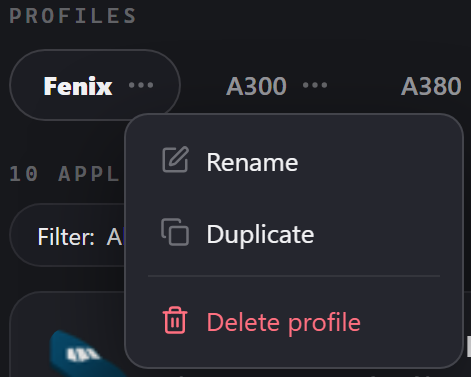
A menu is available on every profile badge, through or a right-click. It lets you rename, delete or duplicate the profile.
Duplicating a profile
To start from an existing profile without reconfiguring everything. A copy is created with all its applications and their settings, named "profile name (copy)", ready to be renamed to a unique name.
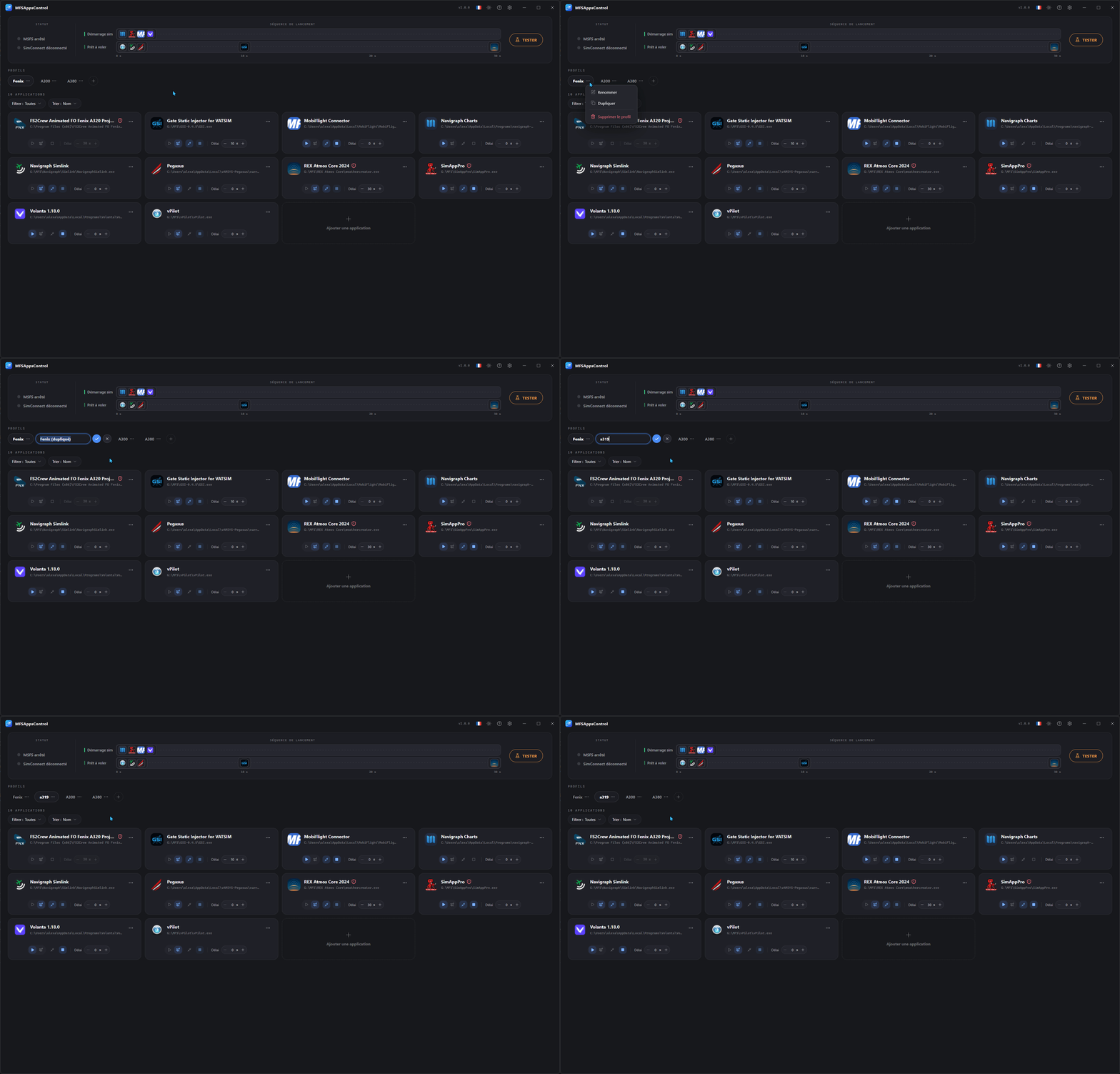
Renaming a profile
When renaming, the name has to be unique; confirmation stays blocked until it is.
Deleting a profile
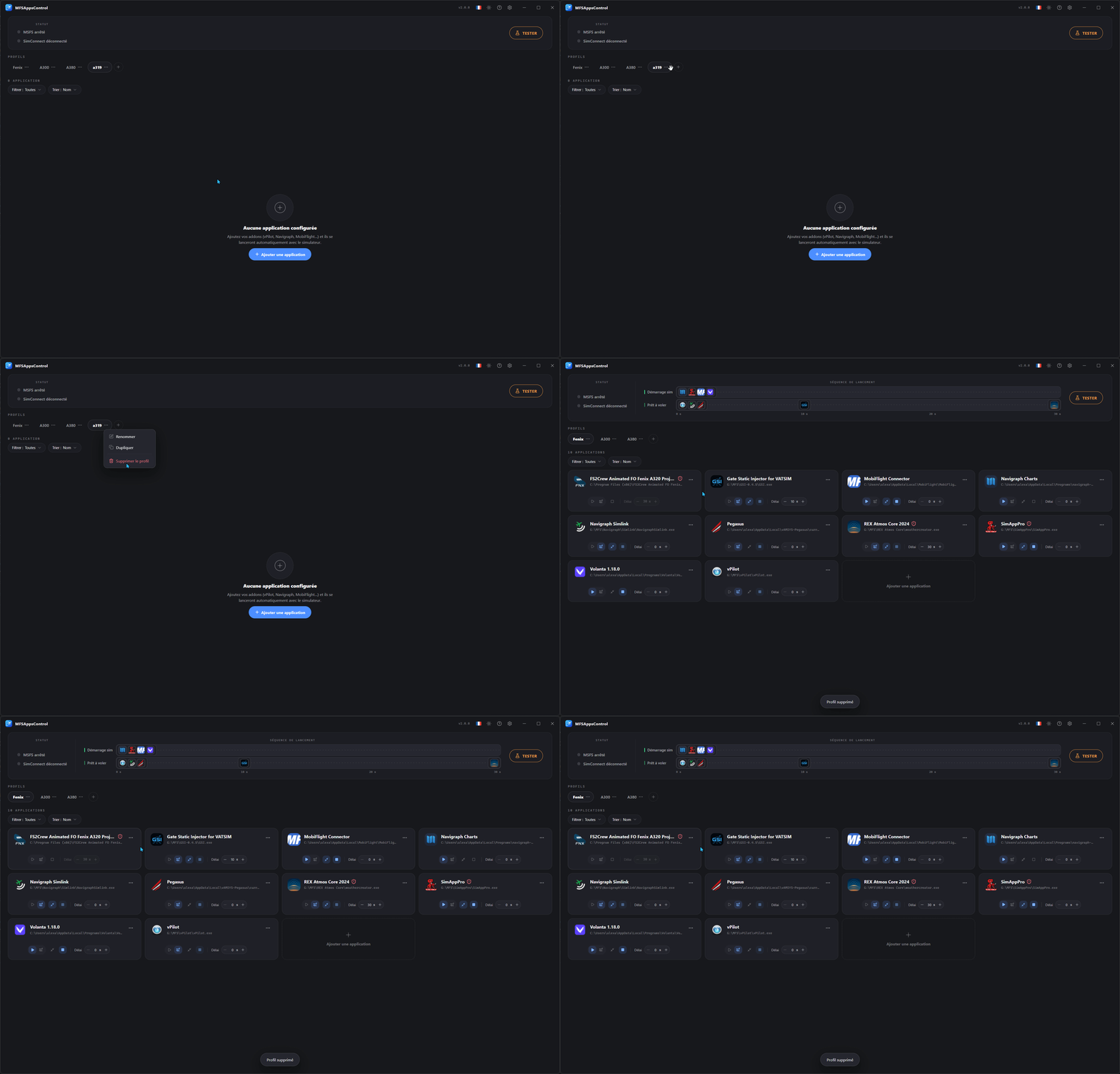
Deleting a profile is irreversible and removes all the applications and settings it contains.
The last remaining profile cannot be deleted.
Reordering
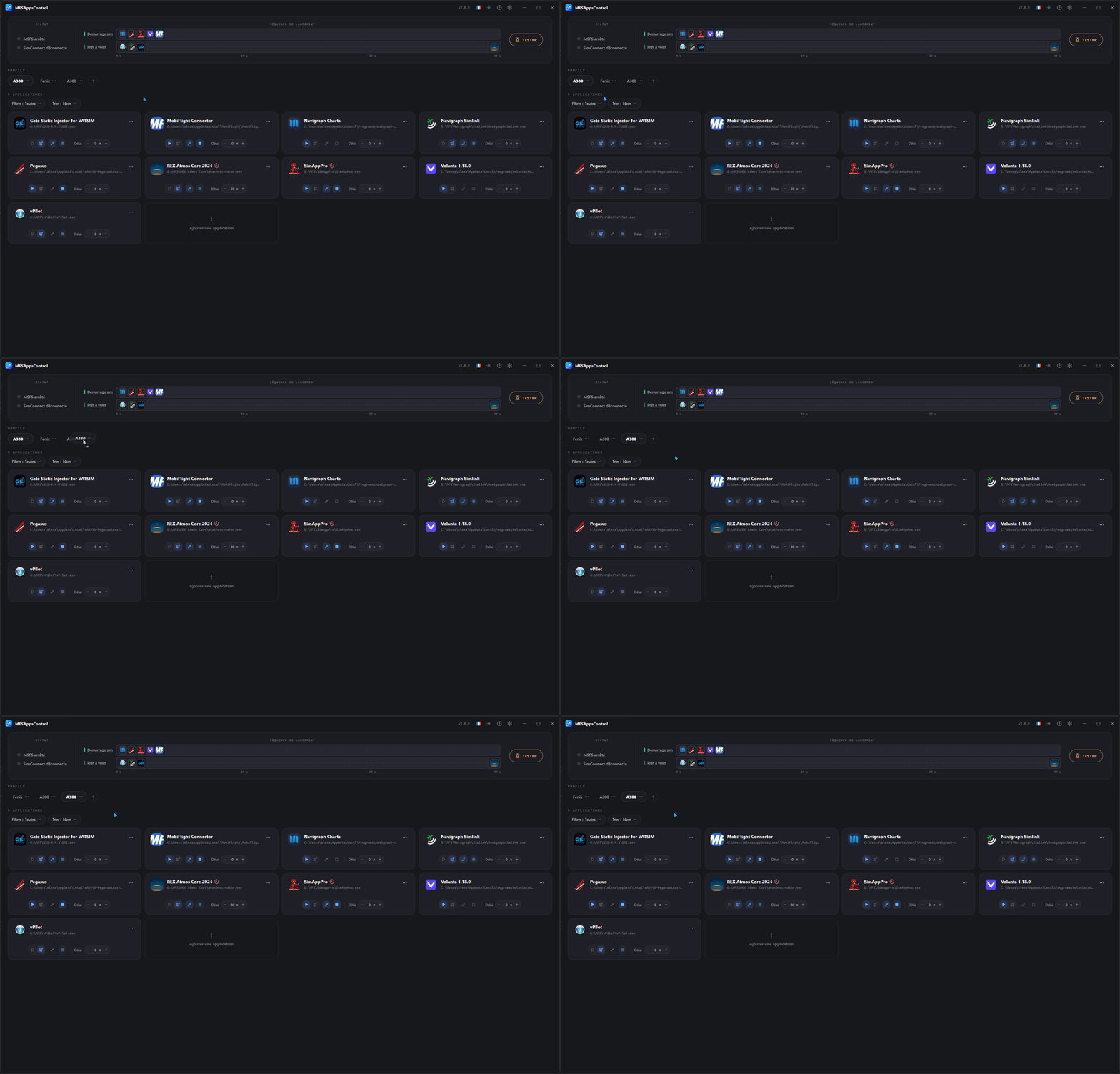
Drag and drop the badges to change their order. This is purely visual, so you can find your favorite profiles more easily.
Automatic locking
Profiles become locked (a appears on the active profile) to prevent any change while the sequence is running.